OpenAMP Demo Docker images
The OpenAMP project maintains the following docker images to demonstrate the project.
Multiple QEMU instances are run in the docker image to emulate both the host processor(s) and the remote processor(s) of an OpenAMP system topology.
The Supporting Tools are executed within the docker container using host scripts and applications.
In the future docker images for use with CI will also be provided. At this time the following images are provided:
Name |
Description |
|---|---|
openamp/demo-lite |
Just enough to run the OpenAMP QEMU demos and supporting tools, like lopper CLI demo |
openamp/demo |
Placeholder for image to build and run the above demos |
Docker setup
You will need docker on your machine. A docker install from your Linux distribution or from the official docker project should work fine.
Warning
Arm64 host machines (like a MacBook with Apple Silicon instead of x86 ) are not tested at this time. Binary translation may or may not work. An aarch64 docker image will be provided in the future.
Some quick start information is given below but also checkout the docker cheat-sheet at the end of this document.
Docker quick start for Ubuntu
Example for Ubuntu 20.04 or 22.04:
$ sudo apt update; sudo apt install docker.io; sudo adduser $USER docker
Then logout and log back in in order to get the new group. You can check your groups with the command:
$ groups
Warning
If you cannot add yourself to the docker group, you can run docker with sudo
but doing so with any docker image is not recommended based on general
security best practice. There is nothing in the OpenAMP images that should
make them more dangerous than other images.
Your life will be easier if you are not behind a corporate firewall. However if you can pull the docker image you should be able to run the demos as they are self contained. Some of the other activities described like installing new packages etc may not work without additional effort. If needed, please checkout this tutorial.
Docker for other host systems
There are a ton of tutorials for installing and using docker on the web. Some good ones include:
Start the container
The demos should be started using docker run in interactive mode with pseudo-tty.
you@your-machine:~$ docker run -it openamp/demo-lite
This will pull the openamp/demo-lite image to your machine if it is not already there. If it is there it will be used without checking if it is the latest.
It will then create and start a container based on this image and attach to it.
Start Docker Demos using Container
You will now be at a command prompt inside the container. As part of logging you in, some guidance will be printed on how to run the demos.
Welcome to the OpenAMP demo (lite version)
You can run the demos by using
    $ qemu-zcu102 demo1
Where demo1 is any of demo1 demo2 demo3 or demo4
You can also run the lopper demo like
    $ ./demo5/demo5

Enjoy!
dev@openamp-demo:~$
To exit the docker container use key combination Ctrl-A x on window 0 (left tmux pane) or type exit on window 1 (top right tmux pane).
We also recommend reading Qemu Tips and Tricks to help you during execution of demos.
QEMU Demos Layout
The QEMU demos have a consistent terminal layout utilizing tmux, which is a terminal multiplexer, allowing for multiple terminals to be displayed on a single window.
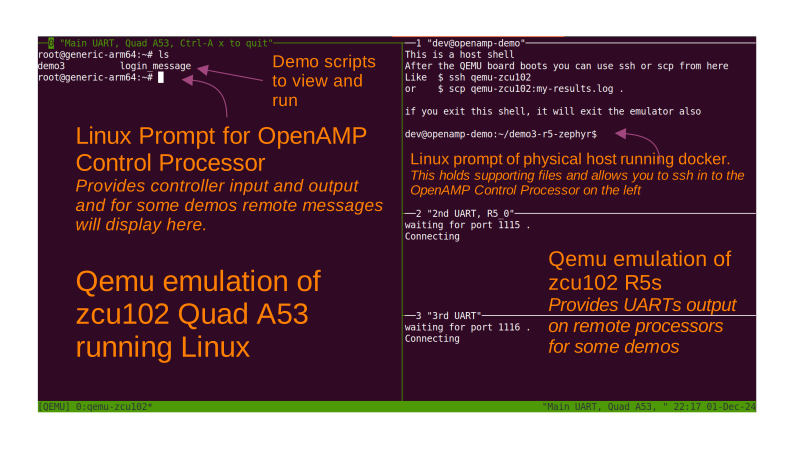
In the figure above the orange text is informative and the white is what is actually displayed by the docker image parts.
There are four tmux panes. The left most larger pane is the Linux prompt for the OpenAMP demonstration’s controller/host processor (not to be confused with the docker host). This is where each of the demo scripts are provided (in the home folder) to be executed. This pane is also where all of the input and output is performed.
The top right tmux pane is the docker host pane, which holds the supporting files like firmware images (in a directory called my-extra-stuff) and allows you to ssh into the A53 control processor Linux instance (left most tmux pane).
The two bottom right panes are for the UART output of the two zcu102 R5s.
Run the QEMU based demos
To run demo1, use the following command:
dev@openamp-demo:~$ qemu-zcu102 demo1
This will:
- Build a custom cpio file for the tftp/zcu102 directory
This cpio will contain the contents of the base cpio file plus the contents of the my-extra-stuff directory
This is done every boot so changes to the my-extra-stuff directory will be used on the next boot
You can view the contents of the my-extra-stuff directory in the top right ‘host’ pane of tmux. It contains a lib folder with firmware files and a /home/root directory with the demo scripts and login_message displayed on start.
- Start tmux and create multiple panes
The main QEMU pane with the main UART
A “host” pane for container level commands
Two additional UART panes
- QEMU will:
Emulate the four A53 CPUs and the two R5 CPUs
In a separate QEMU process, emulate the microblaze based PDU
- The A53s (in main QEMU pane) will:
Run TrustedFirmware-A, and U-Boot
U-boot will autoboot from TFTP (provided by QEMU from the tftp directory)
Load and run the kernel, dtb, and cpio based initramfs
present a login prompt
The container shell pane will present a container prompt
- The 2nd and 3rd UART panes will
wait for QEMU to start
connect to the other UARTs of the emulated SOC
The 2nd UART is not used by demo 1 & 2 but is used by demo 3 & 4
The 3rd UART is not currently used
Let the SOC autoboot (don’t stop at the U-boot count down) and then login as directed (user is root with no password). If you don’t see the login prompt hit enter to get a fresh prompt. At SOC login (left tmux pane), instructions will be printed for running the current demo.
The following snippet shows the login followed by the login_message printed immediately after login.
Poky (Yocto Project Reference Distro) 4.0 generic-arm64 /dev/ttyPS0

(Login as root with no password)
generic-arm64 login: root
This is demo1, rpmsg examples on R5 lockstep
There are 3 sub-demos here: demo1A demo1B and demo1C
Look at them
$ cat demo1A
or just run them
$ ./demo1A

root@generic-arm64:~#
Demo1 contains 3 sub-demos, demo1A, demo1B and demo1C.
You should look at each before running it.
The subsequent snippets show and then run demo1A script, followed by the outputs.
Display script:
root@generic-arm64:~# cat ./demo1A
#!/bin/sh

R5_0=/sys/class/remoteproc/remoteproc0

echo "Make sure the R5 is not running"
echo stop >$R5_0/state 2>/dev/null

echo "Set the firmware to use"
echo image_echo_test_zcu102 >$R5_0/firmware

echo "Start the R5"
echo start >$R5_0/state

echo "Now run the echo test Linux application"
echo_test
and then run it:
root@generic-arm64:~# ./demo1A
Make sure the R5 is not running
Set the firmware to use
Start the R5
[  809.815718] remoteproc remoteproc0: powering up ff9a0000.rf5ss:r5f_0
[  809.818340] remoteproc remoteproc0: Booting fw image image_echo_test_zcu102, size 610856
main():98[  op 8enamp l09.833571ib v]  remotersion: eproc0#v1.dev0buffe1.0 (r: registered virtio0 (type 7)
main():99 Major: 1, main():100 Minor: 1, main():101 Patch: 0)
[  809.833965] remoteproc remmain()ote:103 libmetal libpro version: c0: 1.1.remot0 (e processor ff9maina0000.rf5s():104 Major: 1, s:r5f_0 mais innow up
():105 Minor: 1, main():106 Patch: 0)
main():108 Starting application...
0 L7 registered generic bus
Note that the output above shows both the Linux control processor output as well as the remote processor output interleaved so can be muddled in places.
[snip]
sending payload number 470 of size 487
echo test: sent : 487
received payload number 470 of size 487

sending payload number 471 of size 488
echo test: sent : 488
received payload number 471 of size 488

**************************************

Echo Test Round 0 Test Results: Error count = 0

**************************************
18 L6 rpmsg_endpoint_cb():36 shutdown message is received.
19 L7 app():82 done
[  814.610677] virtio_rpmsg_bus virtio0: 20 L6 main():129 Stopdestroyiping ang channelpp rlication.pm..
sg-openamp-demo-channel addr 0x400
21 L7 unregistered generic bus
Do the same for demo1B and demo1C.
To exit QEMU do either one of these:
In QEMU pane, hit Ctrl-A and then x
Click the “host” shell pane and type the
exitcommand
Now do the same for the other demos. You need to first
exit docker and then
start docker run for demo2, demo3, and
demo4.
These demos do not have sub-demos so contain a single demo script.
Run the Lopper CLI demo
The Lopper demo is fairly standalone but the container already has the needed requirements and the git repository has already been cloned with the correct branch. Additionally, scripts have been written to cut down the typing or cut-and-paste required.
Note that this demo is a Supporting Tools demo so does not use qemu-zcu102 like the previous demos. Instead the demo is run directly to start the corresponding container.
To run this demo use:
dev@openamp-demo:~$ ./demo5/demo5
The script will first give the URL of the README file. You should open this URL in a browser and follow along.
The script will then step you through the commands in the README and let you view the various files. At the end you can look at all the files in the ~/demo5/lopper/demos/openamp directory.
Refer to the Lopper Intro for details.
Exit and clean-up the docker container
When at the docker container prompt (window 1 at top right of terminal), the exit command will stop the container and return you to your machine’s prompt.
dev@openamp-demo:~$ exit
you@your-machine:~$
Alternately type Ctrl-A x to quit, as instructed on window 0, top left of the terminal.
Now the container is not running but still exists. To check and delete it do:
you@your-machine:~$ docker ps -a
CONTAINER ID   IMAGE               COMMAND                  CREATED       STATUS                      PORTS     NAMES
nnnnnnnnnnnn   openamp/demo-lite   "/bin/sh -c 'su -l d…"   2 hours ago   Exited (0) 36 seconds ago             random_name
nnnn openamp/demo-lite "bash"  Exited (0) 2 minutes ago random_name
dev@openamp-demo:~$ docker rm random_name
Note
You can use tab completion to fill in the random name assigned to the container
The reusable docker image still exists on your machine. To see the images and delete the the openamp ones, you can do:
you@your-machine:~$ docker image list
openamp/demo-lite   latest        6ee85d920453   24 hours ago   837MB
you@your-machine:~$ docker image rm openamp/demo-lite
qemu-zcu102 tips and tricks
Some help is available with qemu-zcu102 help but it is not yet complete.
tmux mouse mode is turned on. You can:
click in a pane to give it focus
hold the right mouse button to show a menu (zoom and un-zoom are useful)
the mouse scroll wheel will scroll the pane, use
qto exit this modeif you don’t need the 2nd or 3rd UART pane, you can kill them with the right button menu
you can drag the pane borders to resize the panes
you can kill the container host pane w/o stopping QEMU
The container host pane can be used with ssh to connect with the
emulated SOC or with scp to transfer files.
SSH configuration is already setup for the name qemu-zcu102.
From the container host pane:
dev@openamp$ ssh qemu-zcu102
root@generic-arm64:~# exit
dev@openamp$ date >date.txt; scp date.txt qemu-zcu102:
dev@openamp$ ssh qemu-zcu102 cat date.txt
You can manually send output to the 2nd UART like so:
root@generic-arm64:~# echo “Hello there” >/dev/ttyPS1
Docker cheat-sheet
First some tips specific to the OpenAMP demo containers
The container is based on the standard Ubuntu 20.04 docker image. Like the Ubuntu standard images it is minimized (no man pages etc). However bash completion has been added.
There is no init system running (no systemd, no sysvinit) so no daemons are
running. You cannot ssh into the container nor use scp between your host and
the container. You can use docker cp and docker attach in
a fashion similar to scp and ssh respectively.
You have no password required sudo access as the dev user. You can update
and install packages if you wish.
All of the below are standard docker usage but may be helpful to people less familiar with docker.
You can add --rm to the docker run command to automatically delete the
container when you exit.
You cannot change your mind while running the container so do this only if
you are sure you do not want to reuse the changes you made in the container.
This will not delete the image, just the container.
To restart and reattach to a container that is stopped, do this (tab completion will help with the random name):
you@your-machine:~$ docker start random_name
you@your-machine:~$ docker attach random_name
To detach from a container without stopping it, you can use Ctrl-p Ctrl-q.
To reattach use the attach command as show above.
docker ps will show all running containers and docker ps -a will
show all containers running or stopped